food4rhino
MCP

텍스트로 라이노에 모델링을 시키는 프로그램

https://youtu.be/fa5oGTUYH5M?si=-HEXiPGSYQxNFhLT
How to Install & Use with Claude Desktop
1. Install the Rhino plugin directly from the Package Manager, search for "RhinoAiMCP" (Installation only available for windows users). Then restart Rhino.
2. Download and install Node.js from the official website (This also installs npx, which is required for MCP communication):
https://nodejs.org/en/download
3. Install Claude Desktop
If you haven’t already, download and install Claude Desktop from Anthropic.
4. Open Claude's Developer Settings
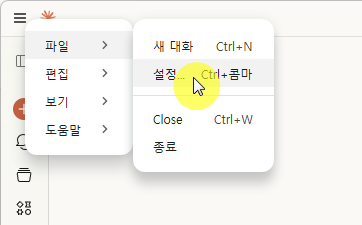
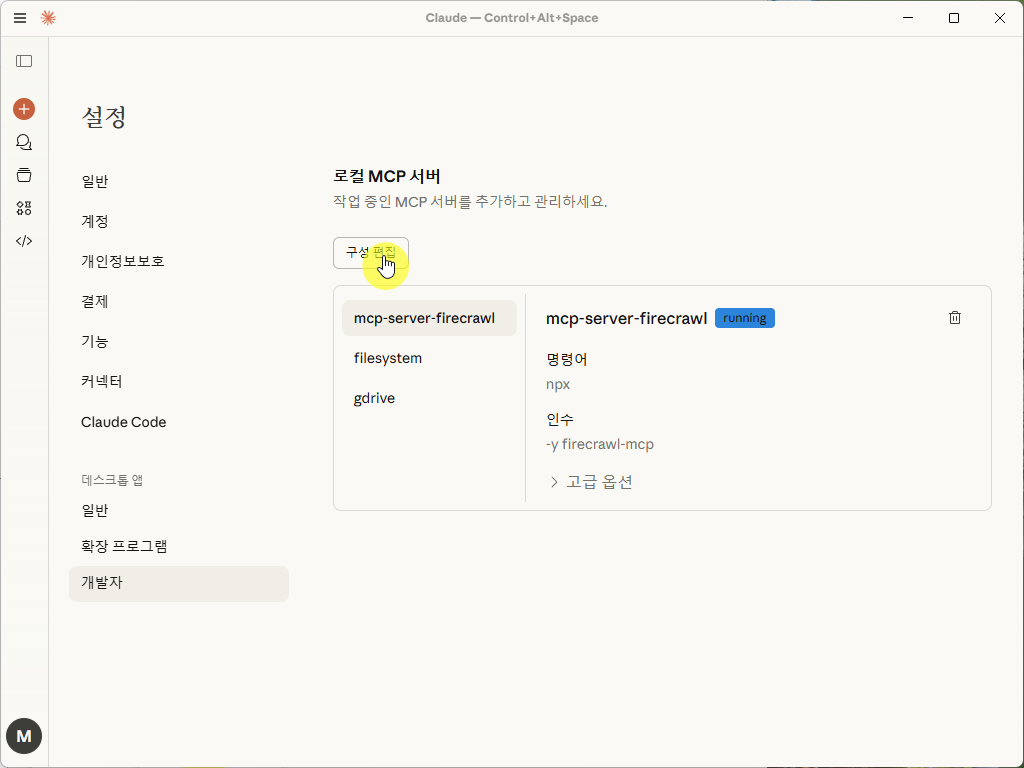
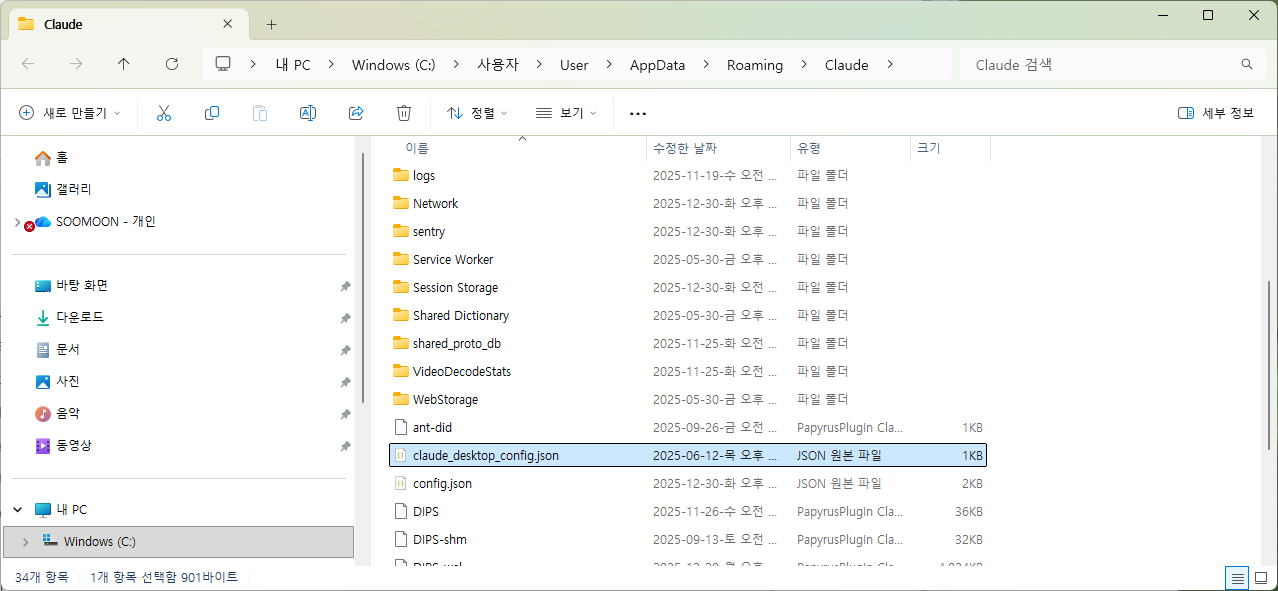
In Claude Desktop, go to File > Settings > Developer, then click Edit Config. This will automatically open the folder containing the configuration file.
5. Edit the Configuration File
Open the configuration file (named claude_desktop_config.json) with your preferred text editor, and replace its content with the following:
{
"mcpServers": {
"rhinoceros3d": {
"command": "npx",
"args": [
"mcp-remote",
"http://localhost:3001/mcp"
]
}
}
}
6. Save and close the configuration file.
7. Close Claude completely
Make sure Claude is fully shut down—including the tray icon in your system bar (on Windows or macOS).
8. Run the plugin inside Rhino
Open Rhino and run the RhinoAiMPC plugin by typing in the command line "RhinoAiMCP". You’ll see a message like:
MCP server started: http://localhost:3001
You can now connect Claude Desktop, Copilot, Ollama, etc.
9. Reopen Claude Desktop
Claude will automatically detect the MCP server at http://localhost:3001/mcp and you will be able to send prompts to rhino like:
"Design a Minecraft-style building in rhino".
Claude 데스크톱 설치 및 사용 방법
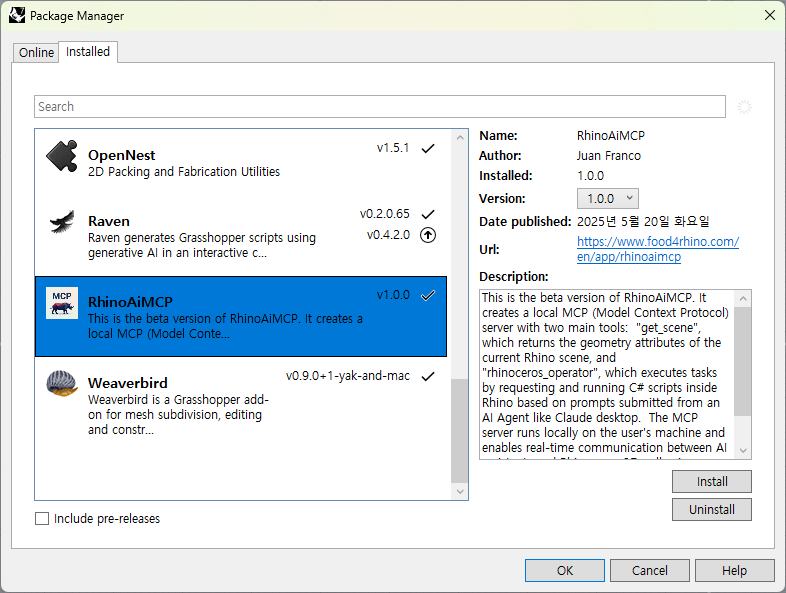
1. 패키지 관리자에서 Rhino 플러그인을 직접 설치하세요. "RhinoAiMCP"를 검색하세요(설치는 Windows 사용자만 가능합니다). 그런 다음 Rhino를 다시 시작하세요.
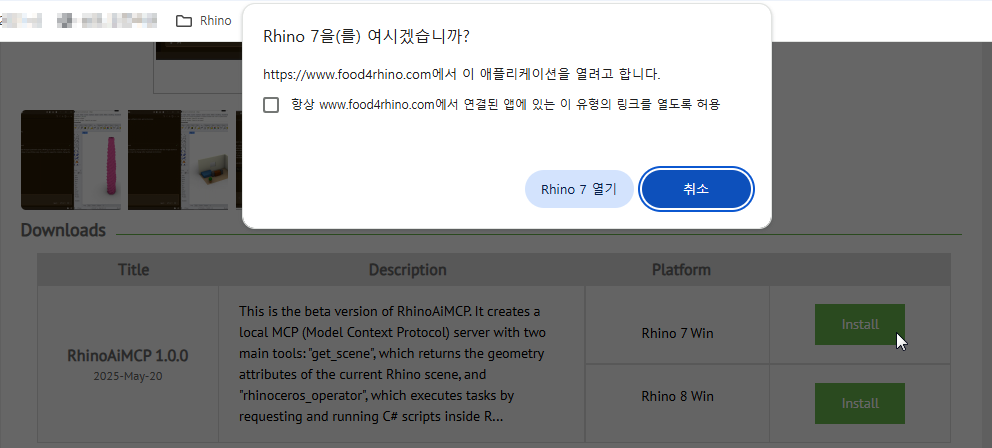
위 그림에서 Rhino 열기를 클릭하며 Rhino가 실행되고, 아래 창이 자동으로 뜬다. Install을 클릭하여 RhinoAiMCP를 설치한다.
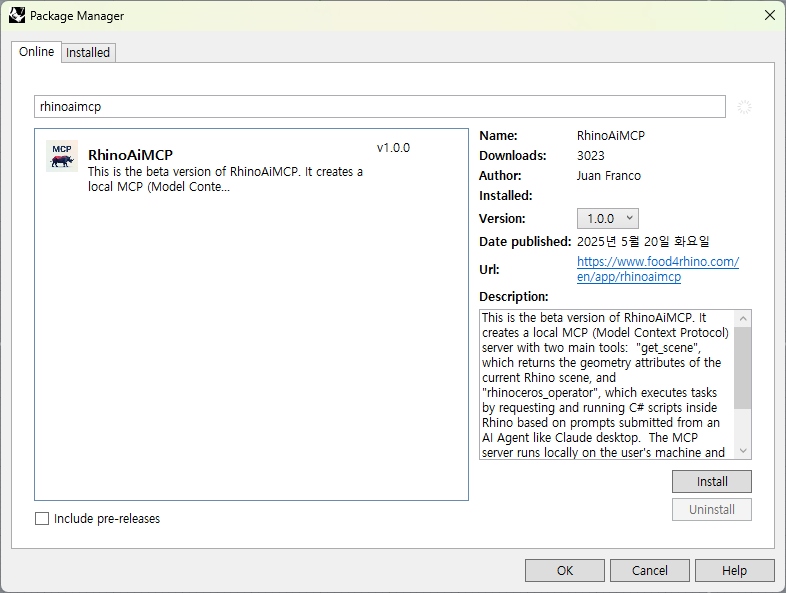
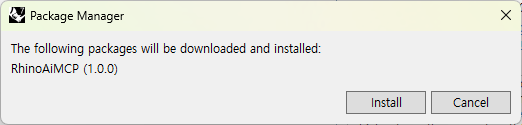
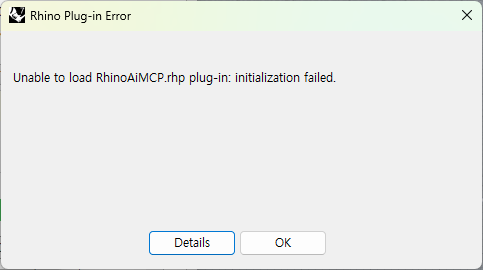
Rhino 버전이 7이라써 그런지 error가 난다.

다시 아래창에서 Install을 클릭하여 프로그램을 설치후 라이노를 닫는다.
2. 공식 웹사이트에서 Node.js를 다운로드하여 설치하십시오(이 과정은 MCP 통신에 필요한 npx도 함께 설치합니다).:
https://nodejs.org/en/download
Node.js — Download Node.js®
Node.js® is a free, open-source, cross-platform JavaScript runtime environment that lets developers create servers, web apps, command line tools and scripts.
nodejs.org
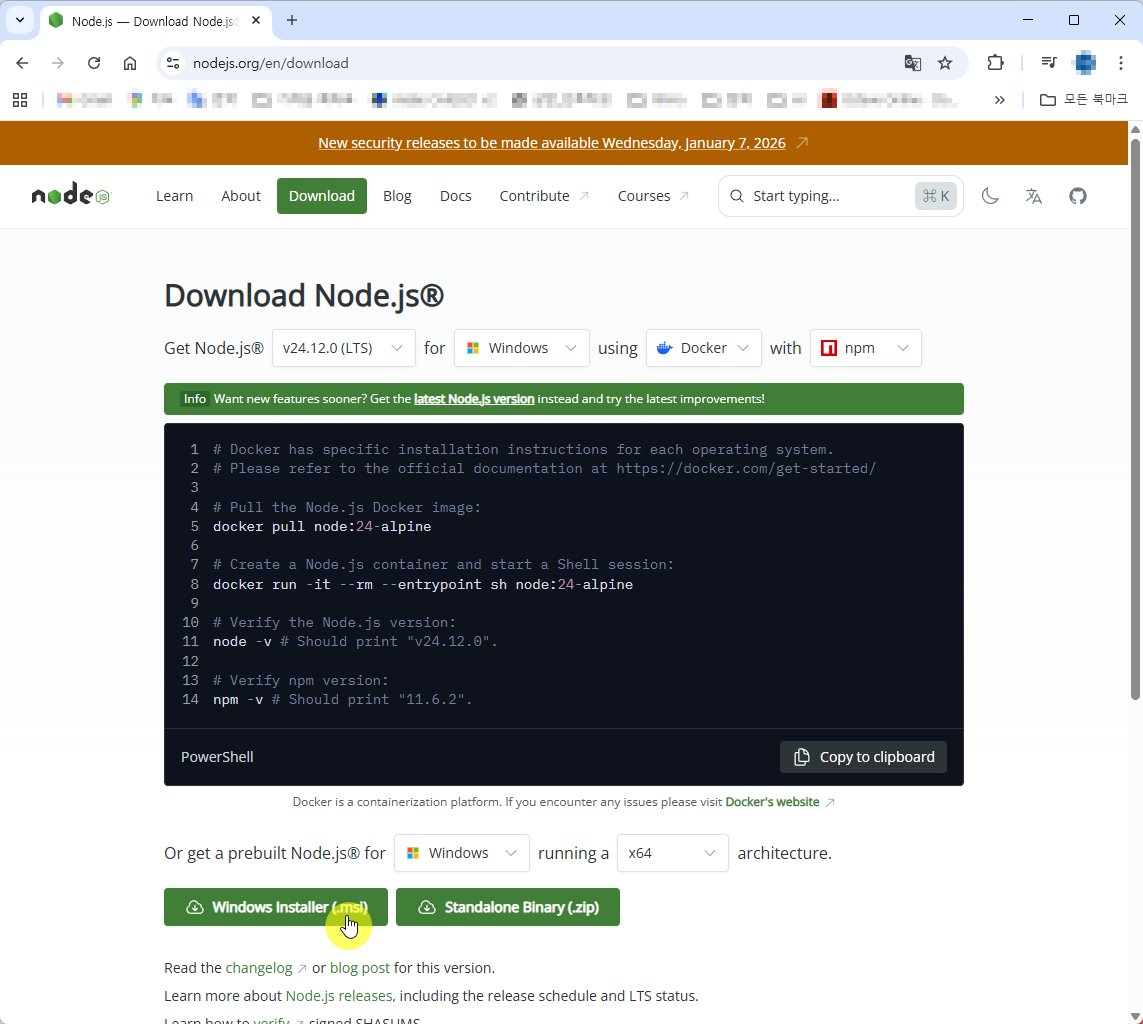
아래 그림에서 Windows Installer 클릭하여 다운로드 받는다.
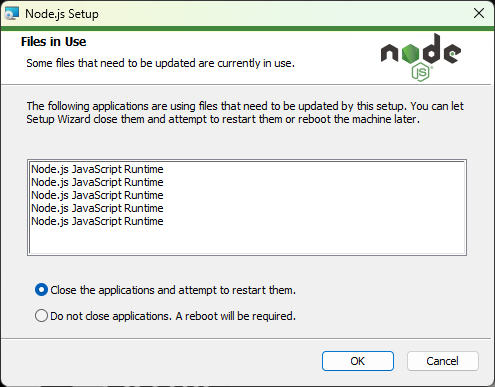
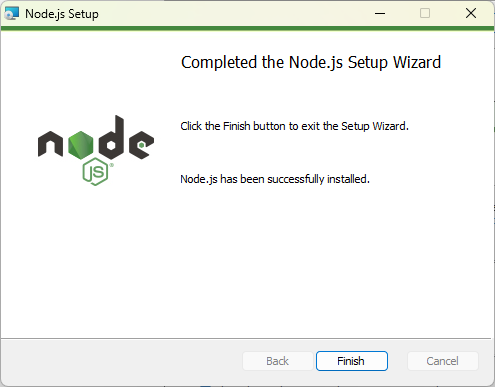
다운로드 받은 파일을 설치한다.


3. Claude 데스크톱 설치
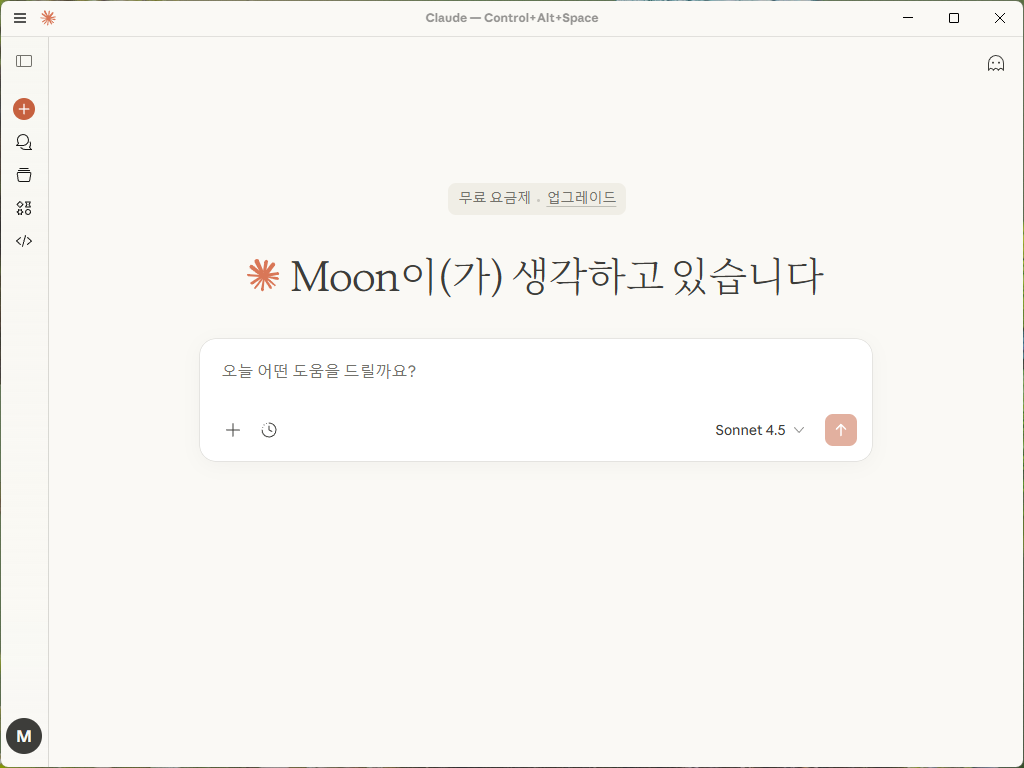
아직 하지 않으셨다면, Anthropic에서 Claude Desktop을 다운로드하여 설치하세요.
Download Claude | Claude
Download Claude for desktop and mobile. Access AI assistance natively on Mac, Windows, iOS, and Android across all your devices.
claude.com
4. Claude 개발자 설정 열기
Claude 데스크톱에서 File > Settings > Developer으로 이동한 다음 그런 다음 ' 구성 편집'을 클릭하세요. 그러면 Configuration File이 포함된 폴더가 자동으로 열립니다.
5. Configuration File 편집
원하는 텍스트 편집기로 구성 파일(claude_desktop_config.json)을 열고, 그 내용을 다음과 같이 대체하십시오:
{
"mcpServers": {
"rhinoceros3d": {
"command": "npx",
"args": [
"mcp-remote",
"http://localhost:3001/mcp"
]
}
}
}
6. the configuration file을 저장하고 닫는다.
7. Claude를 완전히 닫는다.
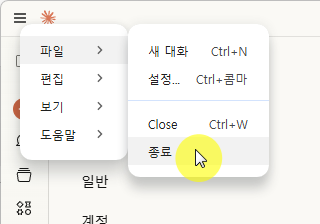
클로드가 완전히 종료되었는지 확인하십시오—시스템 트레이(Windows 또는 macOS)의 트레이 아이콘도 포함됩니다.
작업관리자에서 Claude가 실행되고 있는지 확인하고 완전 종료한다.
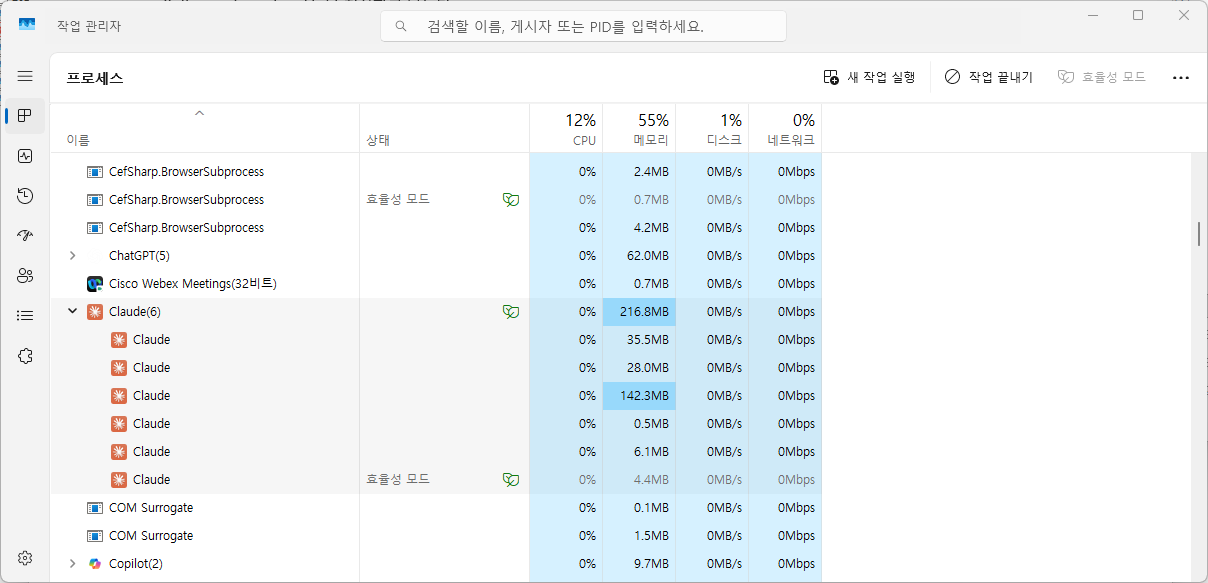
8. Rhino 내에서 플러그인을 실행하십시오.
Rhino를 다시 실행하니 아래와 같은 에러메시지가 나온다.
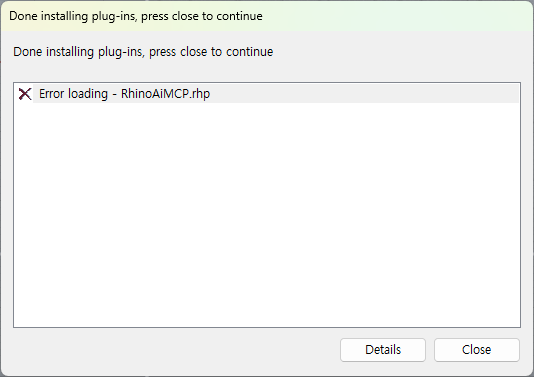
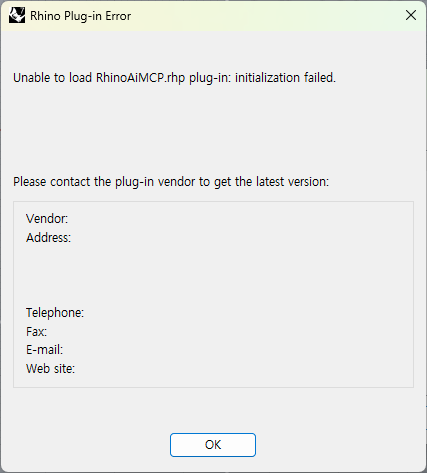
Package Manager에서 확인해보니 설칟되었다고 나오는데....
Rhino를 열고 명령줄에 "RhinoAiMCP"를 입력하여 RhinoAiMPC 플러그인을 실행하세요. 다음과 같은 메시지가 표시됩니다:
MCP 서버 시작됨: http://localhost:3001
이제 Claude Desktop, Copilot, Ollama 등을 연결할 수 있습니다.
9. Claude 데스크톱 다시 열기
Claude는 http://localhost:3001/mcp의 MCP 서버를 자동으로 감지하며, 다음과 같이 rhino에 프롬프트를 보낼 수 있습니다:
"Design a Minecraft-style building in rhino".
'Rhino' 카테고리의 다른 글
| Naked Edge Settings (0) | 2026.01.26 |
|---|---|
| Rhino실행시 에러 메시지 (0) | 2025.12.30 |
| Rhino 7 Out of memory (0) | 2025.05.22 |
| Missing Fonts (0) | 2025.04.17 |
| Explide Large Mesh (0) | 2025.04.16 |
이 글을 공유합시다